Smash Syndicate
Sign in to access your Badminton Engagement Network System
or sign in with email
or create account with email

Smash Syndicate

Badminton Engagement Network

🏸 Live at: smashsyndicateph.com

Normal Queue Mode

Manage players, queues, and matches

Syndicate Partner

Tournament Mode

Organize tournaments and brackets — single elim, Swiss, groups, club ties & more.

Syndicate Partner — tap to preview formats
🌐 Works Offline + Cloud Backup (Your Choice)
Local first: Everything runs and saves on this device without internet. Cloud when you want: Use Settings → Upload to Cloud to copy players, stats (including games played), courts, and match history to your account—then Download from Cloud on another device to continue fairly.

📱 PWA Features Active

✅ Installable • ✅ Offline Ready • ✅ Fast Loading

Facebook
Players
0 player(s) excluded
0 Players
Filter by status

Synergy Teams

No players added yet

Tap "Add Player" to get started!

Courts
Active Matches

No active matches

Start a queue to see live matches!

Match Queues
Court format
Matching

No matches in queue

Add players first, then create a queue!

Players on Standby
Excluded Players
Checked out
📡 Live player board

Share this link so players see who is on court and who is up next. Updates when your session saves. Requires Firebase sign-in (not local preview mock user). Turn off before signing out so the public page clears on your next login.

Recently Completed
Statistics
Finance Management
Session Cost Calculator
Enter session details to calculate total costs
Court Fee
Shuttlecocks
Cost Breakdown
Court Fee:
₱0 × 0 hrs × 0 courts
₱0.00
Shuttlecocks:
₱0.00 × 0 pieces
₱0.00
Total Cost:
₱0.00
Cost per paying player:
₱0.00
0/0 paid
Tap a card to mark paid. Recording payment checks the player out of the session (see Players / Queue). Use split toggle for comped guests. Clear payment removes check-out for that person.
No players registered yet
Add players to track payments
Queue Fee Calculator
Choose how each person’s share is calculated. The Payment Tracker (above) shows the same per-person amount for marking who paid. Use Session Cost Calculator (top) for court + shuttle totals—those feed Equal split and Equity split. Queue + shuttle uses its own queue and shuttle amounts below (not the session total).
Only players with 1 or more games are shown.
Player Games Share
Manual counts apply in Standard, Queue + shuttle & Equity split (defaults = session games from stats).
Quick Calculator
Basic math for change and quick totals — no need to leave the app.
0
Settings
Manage your app data
Account Management
Manage your account and data sync
🔄
Data Sync Status
Checking sync status...
Download player data and stats from cloud (keeps your local active matches)
Upload includes games played, wins, and profiles—only when you tap here (active matches & queue stay local)
Syndicate Partner
Sign out of your account and return to login screen
Text to speech
Default voice for “Announce” on the Queue and active matches
The list is built from your device. If it is empty, wait a few seconds or tap Refresh. On iPad with Bluetooth speakers, tap Test voice once while your speaker is selected in Control Center.
Appearance
Choose a color theme for the app and Live Wallboard
Disables glass blur and heavy animations — helpful on older devices or if you prefer a simpler look.
Player name font size
Queue → Active Matches; Live Wallboard scales up on larger displays
Default
Data Management
Reset or clear your app data
Hand off to another queue manager

Works offline and across accounts (not the same as Upload/Download to Cloud). Send the JSON file to continue this session on another device.

CSV is for spreadsheets only — use JSON to import a full session (players, courts, queue, active matches, stats).
Reset player stats, queue, matches, wait-time analytics, and session start (keeps player list)
Export all match history and pair statistics for debugging
Remove all players, statistics, and match history completely
Save player statistics to clipboard or share
Arrival Priority
Control grace windows and penalty weights
Lower (or negative) values prioritize players. Use the Early Bonus to reward pre-session check-ins, and adjust the penalties to gently push late players down the queue.
🕒
Session Start Time
Control when arrival penalties begin
Session start not set
Branding & Syndicate Partner
Custom logo for the app header and Live Wallboard

Replace the default Smash Syndicate logo with your club or venue branding. The Live Wallboard will still show a small Powered by Smash Syndicate line for attribution.

Logo preview
Syndicate Partner Tap to see what Syndicate Partner unlocks

Get Syndicate Partner — ₱300 / 30 days

Live Wallboard Sponsors
Show sponsor logos on your public Live Wallboard

Upload sponsor logos and optional links for players viewing your Live player board link. Turn on Publish live in Queue so sponsors appear on the wallboard.

Syndicate Partner

Sponsor logo placement on the Live Wallboard is available for Premium subscribers only. Upgrade to Premium to promote sponsors and unlock advertising opportunities.

Add sponsor logos, link them to sponsor pages, and display them on your public Live Wallboard.

FAQ & Best Practices
Quick answers for the latest Smash Syndicate features
📋 Recommended session setup flow

Use this order when you start a new playing day or session:

  1. Start New Session — In Data Management, tap Start New Session to reset stats, queue, and session timing (your player list is kept).
  2. Set Session Start Time — In Arrival Priority below, set when penalties for late arrivals begin (manual time or “Set to Now”).
  3. Add players & courts — Add or confirm players and court setup on the Players and Courts tabs.
  4. Check-in players when they arrive — Use Include / Check-in so Early / On-Time / Late badges apply fairly.
  5. Add queue — Build the Queue so matches can be created.
  6. (Optional) After play, open the Stats tab and export statistics for records.
  7. (Optional) Use the Finance tab to manage and track payments.
🕒 Arrival Priority & Queue Fairness
Players who come early now keep their spot. Late check-ins automatically get a “penalty score,” so even if they still have zero games, they wait until the punctual players catch up.
Example: Alyssa checked in 15 minutes early and hasn’t played yet. Ben arrives 20 minutes late. Alyssa will still be called before Ben even though both show 0 games.
Check-in flow:
  1. Add the player (they start as “Not Checked In”).
  2. Tap the player card → “Include” once they physically arrive (this checks them in).
  3. If session start isn’t set yet, the first check-in sets it automatically; later arrivals get Early / On-Time / Late badges from that time.
  4. You can still set session start manually in Settings before or after check-ins.
  5. Need to pause them later? Use “Exclude” to put them back on standby without deleting stats.
⚖️ Match Creation & Balanced Teams
The queue now prefers “mirror” teams (Beginner + Apex vs Beginner + Apex) and also compares total games. That means smaller groups that have waited longer will finally get a turn, even if the skills aren’t identical.
Example: Two beginners and two elites each have only one game. The system will pair them up before four Journeymen who already played three times.
Same Gender Balanced Mode
Use Same Gender Balanced when you want all-male (MM vs MM) or all-female (FF vs FF) courts with the same skill-matching rules as Balanced Skill. This avoids awkward lineups like 3 males and 1 female at the same skill tier.
Example: Four veteran males queue next — the app forms MM vs MM with balanced teams. If only 3 males and 1 female are available, switch to Balanced Skill or Mix.
🏸 Mix Mode (Mixed Doubles)
Use the Mix button when you want mixed doubles: 1 male + 1 female per team (M+F vs M+F). The app still prioritizes players with fewer games played and respects the arrival penalty—it just ensures each team has one male and one female.
Example: Four players are next in line: 2 males and 2 females. Mix mode pairs them as (M1 + F1) vs (M2 + F2). If you only have 3 males and 1 female, the app will prompt you to add more players or switch to Balanced Skill mode.
🤝 Synergy Teams & Smart Lock
Smart Locked partners still stay together—but only when both of them are next in line. If one partner is late or has already played more games, the team pauses automatically to keep things fair for everyone else.
Example: Rio and Sam are a Smart Lock. Rio has 3 games, Sam has 0 because of traffic. Sam will play with other 0–1 game players until they even out; then the lock reactivates.
🛰️ Offline Mode, Data Sync & Service Worker
You can lose internet and keep running matches—everything is saved on the device. Upload to Cloud and Download from Cloud in Settings are manual: you choose when to push or pull player data, stats, courts, and match history. Clearing “All Players” can clear the cloud copy first so old data doesn’t come back after a refresh.
Example: Wi-Fi drops for 10 minutes—you keep logging matches offline. When you’re back online, tap Upload to Cloud on this device, then Download from Cloud on the other tablet so games played and stats stay in sync for a fair queue.
📋 Session Best Practices
Think of the session in three steps: prep, play, wrap. Before players arrive, set the session start time and double-check Smart Lock teams. During play, watch the “needs encouragement” list and only swap players when necessary. Afterward, export stats + finance and hit “Save” so Firebase stores the final state.
Example: At 5:45 PM you set the session start, add two standby players, and save. At 9:30 PM you export stats, clear finished queues, and see “Saved players to all storage systems” in the console—done!
Tournament
Syndicate Partner
Create event
Public listing (smashsyndicateph.com/tournament)

Players browse open events online and join with a 6-digit key. Signups stay pending until you approve them.

For multi-category events, set each category’s Day below (e.g. Men’s Doubles Advanced on Day 3). Leave end date blank for a single-day event.

Leave blank for unlimited. Calendar dots go from blue to red as pending + approved players fill this cap. At the cap, registration closes automatically.

How many courts can run tournament matches at the same time? This does not start matches for you — it only helps estimate waves per round. When you open this form, we default to the number of courts on your Courts tab (or 1).

Format guide — at a glance
Format Good for… What to know here
Single elimination You want one winner fast. Lose once (before the final) and you stop — like a knock-out cup. Works with 2 or more teams. Example: 8 teams need 7 games total to finish — more courts means each stage of the bracket finishes quicker, but the cup still needs those 7 wins.
Double elimination You want teams to get a second shot after one loss. Here it only supports 2–4 teams today. Larger night? Pick Swiss or single elimination instead.
Swiss Everyone keeps playing several games — great when you want a fair leaderboard without chopping the field straight away. Any head count ≥ 2. If you leave “Swiss rounds” blank, we pick a sensible number of rounds (about enough steps that rankings can sort out). More teams or fewer courts just means you wait a bit between starts — it does not add extra games by itself.
Group stage + knockout Small round robins first (everyone in a group plays everyone), then a short playoff. Your number of teams must split evenly into groups of 4 or 5. You also need at least two qualifiers across all groups for the knockout draw (for example two groups of four with one team each moving on). See the app’s hint if your numbers do not fit.
Team tie (Club challenge) Two clubs face off: each lines up the same number of doubles pairs; pair 1 plays pair 1, pair 2 plays pair 2, and so on. Each side has the same even number of players. If a side has P players, you get P ÷ 2 rubbers per side — each rubber is still one PLAY on the queue. Inside each doubles rubber the pairings play best-of-3 games (first pair to win 2 games wins that rubber); total rally points for tie-break are the sum of rally points across all games of each rubber (the Queue totals this for you).

Tip: If several games can happen at once, filling more courts finishes each batch of games sooner — enter the courts you truly have below so planning matches reality.

Rough schedule planner (ballpark only)

Pick a format, plug in rough numbers (15–25 minutes per rubber can be sensible for doubles team ties — each rubber may use two or three games; singles-style formats often land closer to 15–20).

Choose a format and numbers above to see a rough schedule.

What your club plays to in one game (e.g. 21, 31, 35). Used with the “max either side” field below to validate last-game scores when you record results.

Neither team’s logged last-game score can exceed this. Games that go to deuce or a tie-break often need a higher cap than “points to win” — e.g. 21-up can end 30–28. Leave blank to use points to win + 19 (capped at 99). If your house rule is “tied at 20–20, play to 30”, set this to 30 so 31–29 is not accepted.

The queue manager sets real-world teams. Add one row per team, pick two different players per row. Add at least two complete teams (four players). No auto-pairing from the roster list.

Import roster CSV adds players only: name,gender,skillLevel. Import pairings CSV (multi-category) fills teams automatically: player1,player1Gender,player1Skill,player2,player2Gender,player2Skill,category,teamName — category can be a key (xd_intermediate) or label (XD - Intermediate). Replaces the current team list; creates missing players when gender/skill are provided; skips bad rows with a notice.
Player Registration
Please select a skill level
Select Beginner Level
Initiate
Just starting out, learning basic rules and game flow
Cadet
Understands rules but needs practice and experience
Select Intermediate Level
Journeyman
Competent player with solid understanding and decent execution
Veteran
Experienced and consistent player with good game sense
Select Advanced Level
Elite
Highly skilled with advanced strategic understanding
Apex
Among the absolute best, demonstrating exceptional skill
Edit Player
Please select a skill level
Select Beginner Level
Initiate
Just starting out, learning basic rules and game flow
Cadet
Understands rules but needs practice and experience
Select Intermediate Level
Journeyman
Competent player with solid understanding and decent execution
Veteran
Experienced and consistent player with good game sense
Select Advanced Level
Elite
Highly skilled with advanced strategic understanding
Apex
Among the absolute best, demonstrating exceptional skill
Create Synergy Team
Replace Player

Select a standby player to replace

Swap Partners

Select a player to swap with

Player Actions

What would you like to do with ?

🏆 Edit Completed Match

Update the players and winner of this completed match. Changing this will recalculate player stats and leaderboard.

Team 1

VS

Team 2

Only checked-in session players appear in the lists (including those who checked out early or haven’t played yet). A player cannot be on both teams. Each team must have exactly 2 players.

0/200
Updating this completed match will recalculate player stats, wins/losses, games played and leaderboard data.
Completed match history

Edit any concluded match from this session.

⚠️ Start New Session

Are you sure you want to start a brand new session?

This action will:

  • Reset all games played and wins to 0
  • Clear the queue, active matches, and recent matches
  • Clear all match history & wait-time analytics
  • Reset the session start time and player arrival check-ins

✓ Player list and skill data will be preserved

⚠️ This action cannot be undone!

🚨 Clear All Players

DANGER: This will completely remove all data!

This action will:

  • Delete ALL PLAYERS permanently
  • Delete ALL STATISTICS
  • Delete ALL MATCH HISTORY
  • Delete ALL QUEUE DATA
  • Delete ALL SYNERGY TEAMS

⚠️ THIS ACTION CANNOT BE UNDONE!
You will lose all your data permanently.

Live Match
Player 1 Player 2 Player 3 Player 4

Select Winner

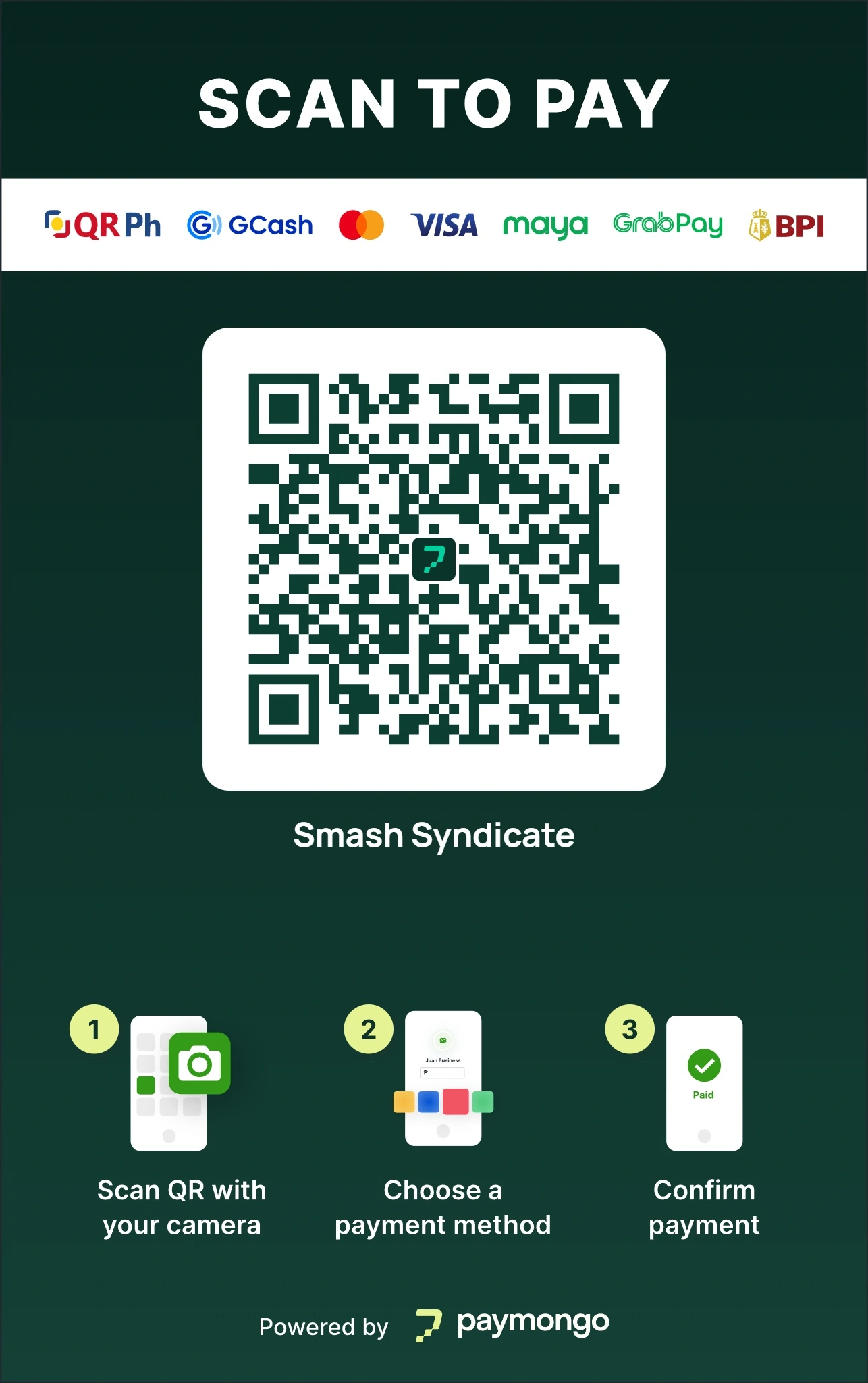
💝 Support Smash Syndicate

Help keep Smash Syndicate free for everyone! Your support helps us maintain and improve the app.

Choose Payment Method:

🚫 Bulk Exclude Players

Select players to exclude from matches. Default exclusion time is 60 minutes.

0 players selected